Loading the ZD410 Printer
|
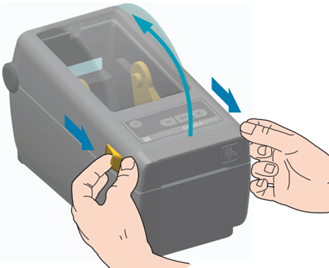
1) Open the printer by pulling the release levers toward the front of the printer.
|
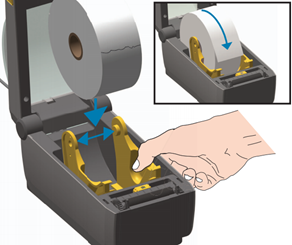
2) Open the media roll holders with your free hand, place the tag/label roll so that the print side is facing up, and ensure the roll is supported by the yellow media holders and turns freely.
|
|
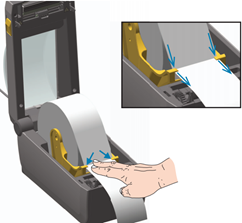
3) Press the tag/label leading end so that it rests under the yellow media guides. |
4) Gently close the lid and press down until the cover is snapped closed. **DROPPING OR SLAMMING THE LID WILL DAMAGE THE PRINTER**
|
|
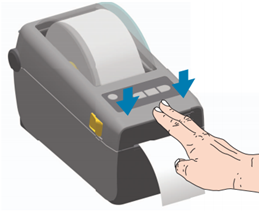
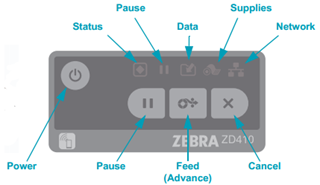
5) Press the Feed (Advance) button on the control panel. Lights: Status: Printer Status – Should always be Green Pause: Indicates printing is paused Supplies: Indicates printer is out of Tags/Labels |
|
Calibrating and Troubleshooting the Zebra ZD410
|
Tags skipping or printing across multiple tags |
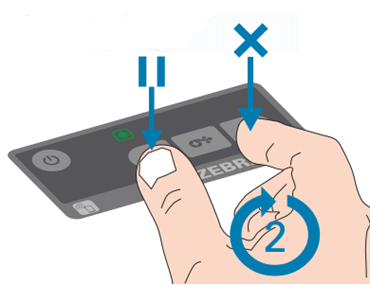
The printer requires calibration. Press and hold the PAUSE and CANCEL buttons for two seconds, then release. |
|
Printing several blank tags after each print
|
Ensure the yellow "Eye" near the front of the printer is in the center. It can be slid left or right by pressing gently with your finger. |
|
Nothing printing or no lights on the printer
|
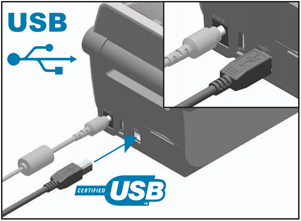
Press the POWER button on the Control Panel. If there is still nothing printing, check both cables in the back of the printer and make sure both are connected securely. Disconnect and reconnect them to be sure, then press the POWER button on the Control Panel.
|

Support Request Severity: High
0 Comments