IMPORTANT: For a WIS Inventory you will need an empty, windows formatted, USB flash drive.
IMPORTANT: The store must be closed during inventory (Final Close complete).
Inventory Scan:
Before Inventory
When WIS arrives at your store for the Inventory Scan please submit a High Priority request to Resale1 technical support and plug the flash drive into an empty USB port on your Register 1 computer.
Resale1 will call back within a few minutes to complete a Pre-Inventory export of your Inventory and save it to the flash drive, which you will hand off to the WIS technician. At this point WIS will start scanning your inventory.
During Inventory - Reprinting Tags
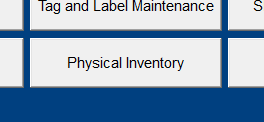
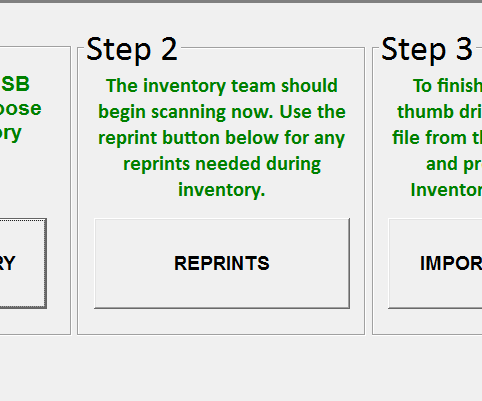
If you need to reprint a tag, please use the Step 2: Physical Inventory Reprints screen (found in Maintenance > Physical Inventory) instead of the normal Reprint Barcode Labels screen.

After Inventory
When WIS completes their scan they will return the flash drive to you. Submit a High Priority request to Resale1 and plug the flash drive into an empty USB port on your Register 1 computer.
Resale1 will call back within a few minutes to update your Inventory based on the WIS scan. This process can take up to 15 minutes. After the inventory update is complete you will receive a receipt printout of some basic information regarding your Physical Inventory.
The next business day you will receive a full set of reports about your Physical Inventory by email.
Support Request Severity: High for Import/Export requests, Normal for How-To questions
0 Comments